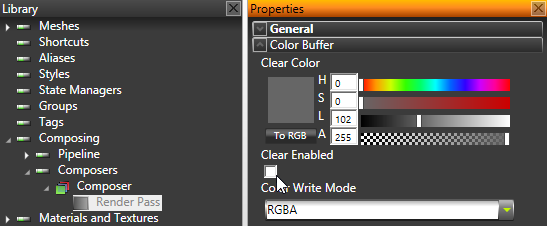
In this example, by disabling the Clear Enabled property you tell Kanzi to render the background brush texture.
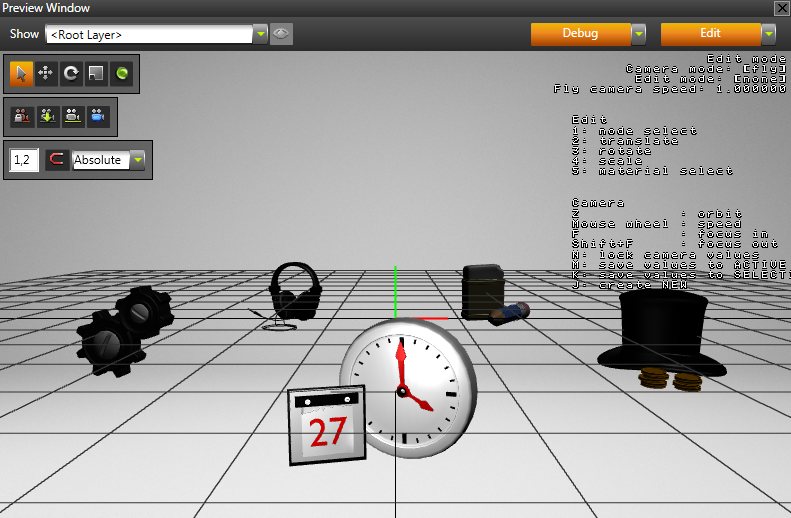
In Kanzi Studio layers are used for organizing the content in applications. A layer is a 2D image on a screen the content of which can be either dynamic or static. Each layer can have a number of child layers the content of which is displayed on the parent layer in the order of appearance. The type of the layer defines the default behavior and content of a layer.
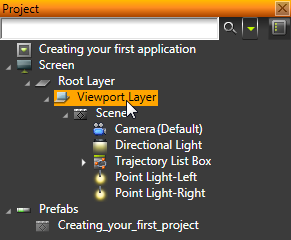
In Kanzi there are many different types of layers, but in this tutorial you use the Viewport Layer. Viewport layer displays a view into a 3D scene through a camera.
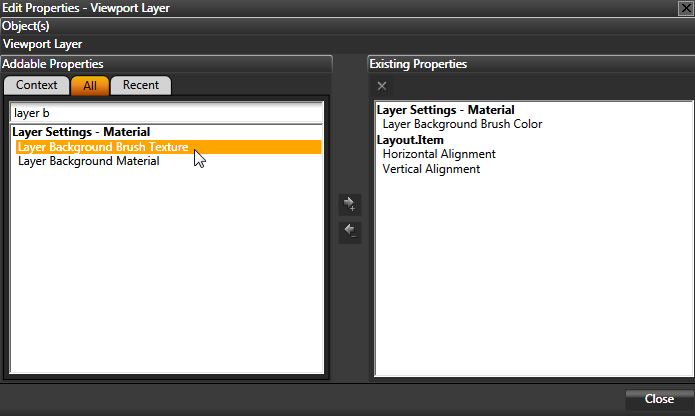
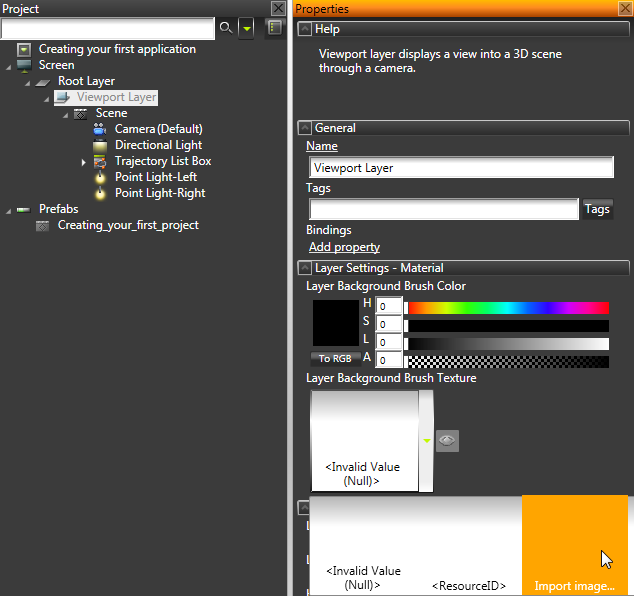
In this step you set the Viewport Layer to use an image for the background.
To find out more about layers, see Layers.
To find out about add background and foreground to your applications, see Creating a background and foreground in applications.
To find out more about composers and render passes, see Composers.